


 Benjamin Carter
Use Google AI Pro for Free and Save Up to $300
In 2025, Google introduced a highly valuable student-only benefit. Eligible students can use Google AI Pro for free for up to 15 months. This plan is normally a paid subscription with a total value of approximately $300.
During the discount period, student users can unlock a wide range of advanced AI features, including:
For international students or enrolled students who frequently rely on AI tools for studying, writing, and research, this is an opportunity well worth taking advantage of.
This student offer was originally scheduled to end on December 9, but Google later extended the promotion by an additional month. As long as the offer is still active, eligible students can continue to apply.

Before you begin, make sure you have the following ready:
By following this guide, you can theoretically save around $300 per year in subscription fees.
| Benefit | Details | Original Value |
| Cloud Storage | 2TB Google One | $9.99 / month |
| NotebookLM Plus | AI notes & audio summaries | Paid feature |
| Deep Research | Automated research reports | Advanced-only |
| Gemini Live | Real-time voice conversations | Advanced-only |
| Canvas | AI-assisted collaborative documents | Advanced-only |
Open the official student page:
👉 https://gemini.google/tw/students/?hl=zh-TW
Follow the on-screen instructions to log in with your Google account.
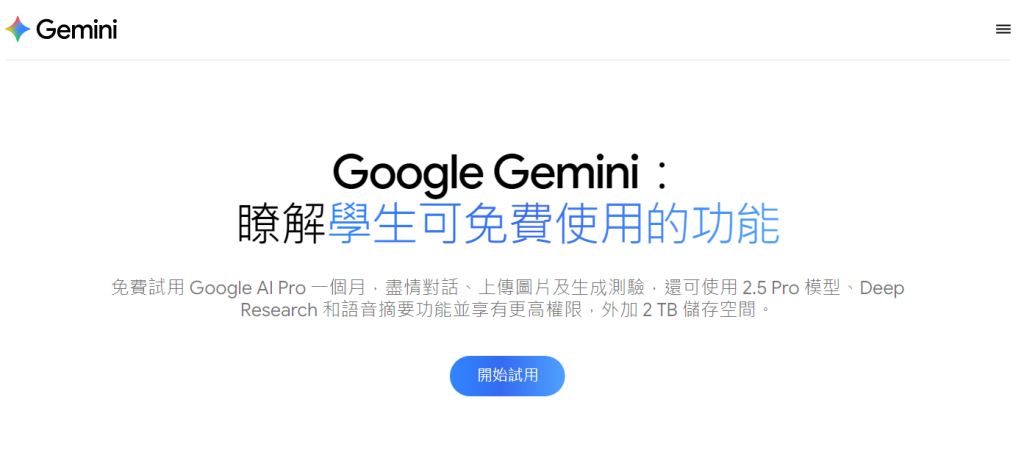
If the page cannot be opened normally due to network restrictions, you may consider switching your network environment using a US static residential proxy IP.
A common solution is using Cliproxy’s US static residential proxy, which sources IPs from real residential networks and closely resembles normal user traffic.
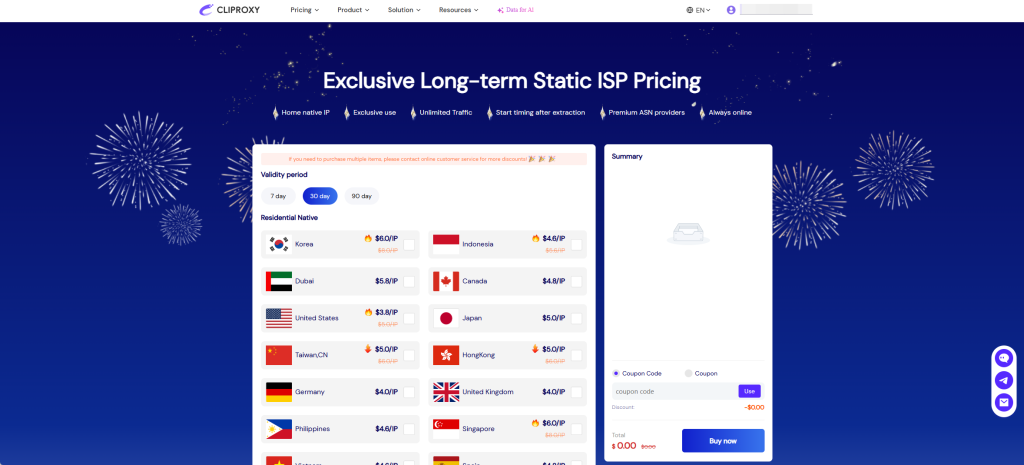
Basic steps:
Before proceeding, make sure that:
After confirming the above, proceed with the student discount process.
After logging in, you will be redirected to the SheerID student verification process. You must enter a valid educational email address.
Commonly accepted email types include:
.edu.cn (e.g., [email protected]).edu.ac.uk, .edu.au)After submission, SheerID will send a verification email containing:
Complete verification within 10–15 minutes, and be sure to check spam or other folders.
Once email verification is successful, SheerID will further verify your student status:
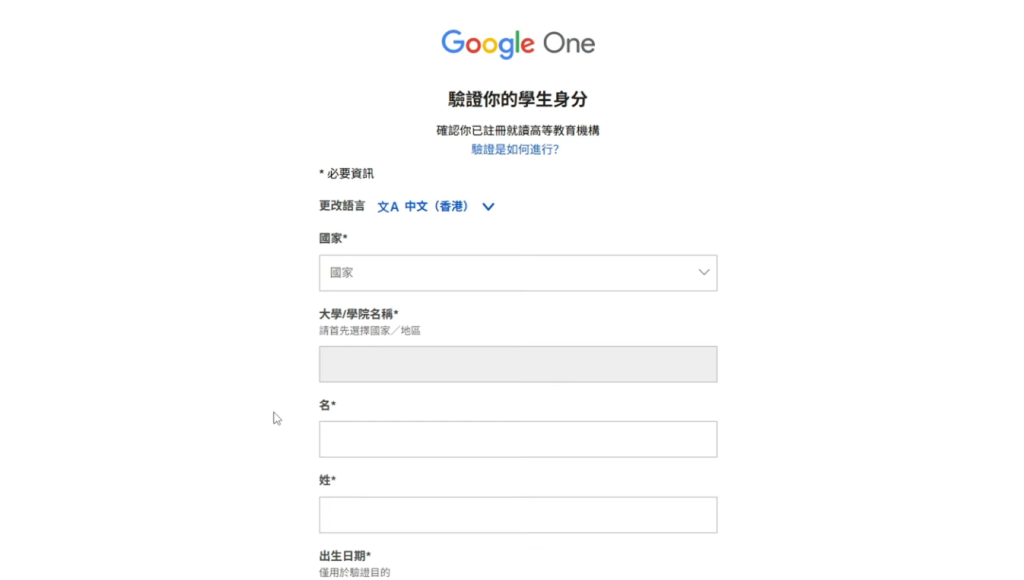
Accepted documents include:
Review usually takes 24–48 hours, and results are sent via email. Based on user feedback, clear photos of student IDs tend to have higher approval rates.
After successful student verification, you will be required to add a payment method.
Important notes:
Simply enter your credit card or virtual credit card details as prompted.
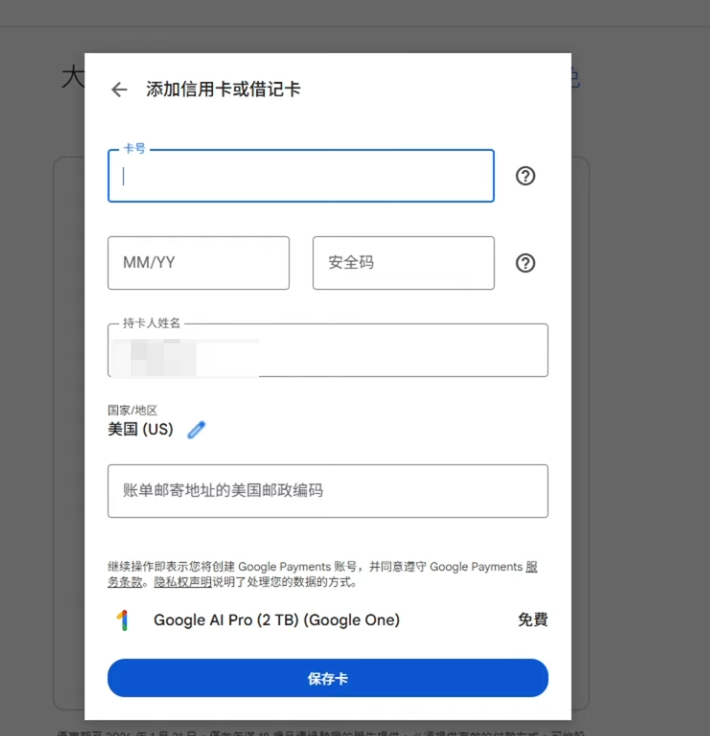
Example:
If you complete verification in November 2025, the free period typically lasts until around February 2027, totaling approximately 15 months.
After expiration, if the subscription is not canceled, Google will automatically charge $19.99 per month.
Yes.
Before the discount expires, Google usually allows eligible students to reverify their student status via SheerID, granting an additional 12 months of free access.
The process is similar to the initial application and requires submitting an educational email or proof of enrollment again.
If you do not plan to continue using the service, make sure to cancel in advance:
After cancellation, you can continue using the service until the free period ends. It is recommended to cancel at least 1–2 weeks in advance to avoid any issues.
Start your Cliproxy trial

Benjamin Carter 2025-03-23 08:46 · 10 min read

Benjamin Carter 2025-03-23 09:14 · 7 min read

Benjamin Carter 2025-10-13 16:00 · 11 min read